This guide shows Holy Family University students, staff, and faculty how to set up the PaperCut print app and securely print to any HFU-Find-Me-Print copier/printer on campus using their ID card.
Installation and Setup (PaperCut Mobility Print)
This section guides you through setting up the PaperCut Mobility Print app on your device, a one-time process.
- Connect to Wi-Fi
- Make sure your device is connected to the tigerWIFI network.
- Download and Install Mobility Print
- On your device (phone, Windows computer, or Mac), go to mobileprintsetup.holyfamily.edu
- If your device's operating system isn't automatically selected, choose it from the options at the bottom of the setup page.
- Follow the instructions on your screen to install the PaperCut Mobility app.
- After Installation
- Once the app is installed, you can print from your device just like you usually would from its print menu.
Printing at an HFU-Find-Me-Print Device
This section explains how to get your print jobs from any HFU-Find-Me-Print copier/printer on campus.
- Log In to the Printer
- Release Your Print Jobs
- After logging in, touch the "Print All" button on the screen. This will print all your pending jobs from the HFU-Find-Me-Print device.
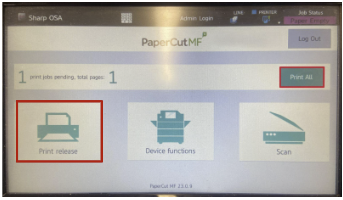
Note: If you have multiple jobs, you can select and print specific documents individually. Click on print release.
Important Notes!
- All HFU-Find-Me-Print devices print only in black and white. Color printing is not available.
- Always remember to log out of the printer after you finish your printing job to keep your account secure.
Troubleshooting
- If you encounter any issues during the installation of the app or while printing, please contact the IT Helpdesk at (267) 341-3402.
Frequently Asked Questions
What is PaperCut Mobility Print?
PaperCut Mobility Print is an app that allows Holy Family University students, staff, and faculty to securely send print jobs from their phones, computers, or other devices to HFU printers.
How do I set up the printing application?
You can set up the application by visiting mobileprintsetup.holyfamily.edu on your device while connected to tigerWIFI.
How do I print my jobs at the printer?
After sending your print job, go to any HFU-Find-Me-Print device, scan your Holy Family University ID card to log in, and then touch the "Print All" button on the screen to print your jobs.
Can these printers print in color?
No, all HFU-Find-Me-Print devices print only in black and white.
Do you face any issues with scanning, logging, or printing into the Copier/Printer?
Please call the Help Desk for assistance at (267) 341-3402.